Today I want to share installation of JBoss EWS with clustering. This is the second post, part of JBoss Web-Application Cluster.
Here is prerequisites before to start JBoss EWS with clustering installation:
1. Mount RHEL DVD
# mkdir /media/repo
# mount -o loop /dev/cdrom /media/repo
# ls /media/repo/
2. Make RHEL DVD as repository
# vi /etc/yum.repos.d/dvd.repo
[RHEL6.3-Repo]
name = RHEL 6.3 DVD Repo
baseurl = file:///media/repo
enable = 1
gpgcheck = 0

[RHEL6.3-Server]
name = RHEL 6.3 DVD Server
baseurl = file:///media/repo/Server
enable = 1
gpgcheck = 0

[RHEL6.3-ResilientStorage]
name = RHEL 6.3 DVD ResilientStorage
baseurl = file:///media/repo/ResilientStorage
enable = 1
gpgcheck = 0

[RHEL6.3-LoadBalancer]
name = RHEL 6.3 DVD LoadBalancer
baseurl = file:///media/repo/LoadBalancer
enable = 1
gpgcheck = 0

[RHEL6.3-HighAvailability]
name = RHEL 6.3 DVD HighAvailability
baseurl = file:///media/repo/HighAvailability
enable = 1
gpgcheck = 0
3. Ensure RHEL DVD is enabled as repository
# yum repolist
4. Auto-mount RHEL DVD after boot (Optional)
# vi /etc/rc.local
#!/bin/sh
#
# This script will be executed *after* all the other init scripts.
# You can put your own initialization stuff in here if you don't
# want to do the full Sys V style init stuff.

touch /var/lock/subsys/local
mount -o loop /dev/cdrom /media/repo
5. Turn off iptables and unregister it from startup service
# service iptables stop
# service ip6tables stop
# chkconfig iptables off
# chkconfig ip6tables off
6. Disable SELinux
# vi /etc/sysconfig/selinux
# setenforce 0
# getenforce 0
7. Use hostname instead of using IP address
# vi /etc/hosts
127.0.0.1      localhost localhost.localdomain localhost4 localhost4.localdomain4
::1            localhost localhost.localdomain localhost6 localhost6.localdomain6
200.200.200.50 ews-vip
200.200.200.51 ews-node1
200.200.200.52 ews-node2
200.200.200.53 eap-node1
200.200.200.54 eap-node2
200.200.200.55 jon-node
8. Edit local hostname
► EWS node 1
# vi /etc/sysconfig/network
NETWORKING=yes
HOSTNAME=ews-node1

► EWS node 2
# vi /etc/sysconfig/network
NETWORKING=yes
HOSTNAME=ews-node2
Let’s start installation of JBoss EWS with clustering:
1. Ping test from each other
► EWS node 1
# ping ews-node1

► EWS node 2
# ping ews-node2
2. Install prerequisites packages
# yum -y install rgmanager lvm2-cluster gfs2-utils
# yum -y groupinstall 'High Availability' 'Resilient Storage'
# yum -y install elinks krb5-workstation mod_auth_kerb mailcap
3. Install, start, and give ricci a password, then register it as startup service
# yum -y install ricci
# service ricci start
# chkconfig ricci on
# passwd ricci
4. Install and start luci then register it as startup service (EWS node 1 only)
# yum -y install luci
# service luci start
# chkconfig luci on
5. Install httpd
# yum -y install httpd
6. Install JBoss EWS httpd
# cd /opt
# yum -y install unzip
# unzip jboss-ews-httpd-2.1.0-RHEL6-x86_64.zip
# cd /opt/jboss-ews-2.1/httpd/
# ./.postinstall
# cd /opt/jboss-ews-2.1/httpd/sbin/
# unlink /opt/jboss-ews-2.1/httpd/conf.d/auth_kerb.conf
# ./apachectl start
# ps ax | grep httpd

Replace mod_ssl.so in /opt/jboss-ews-2.1/httpd/modules with external mod_ssl.so if JBoss EWS httpd failed to start (Ref. to /opt/jboss-ews-2.1/httpd/logs/httpd.log)
7. Stop JBoss EWS httpd service
# ./apachectl stop
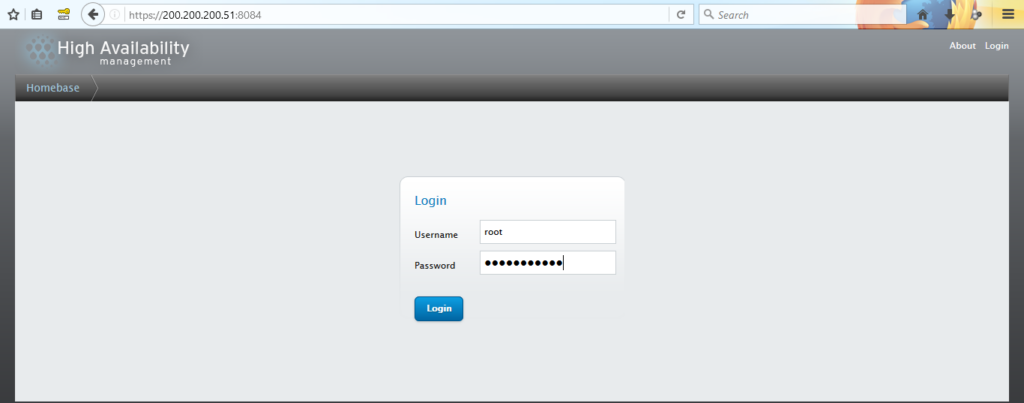
8. Open luci on browser with address https://200.200.200.51:8084 and login with root RHEL
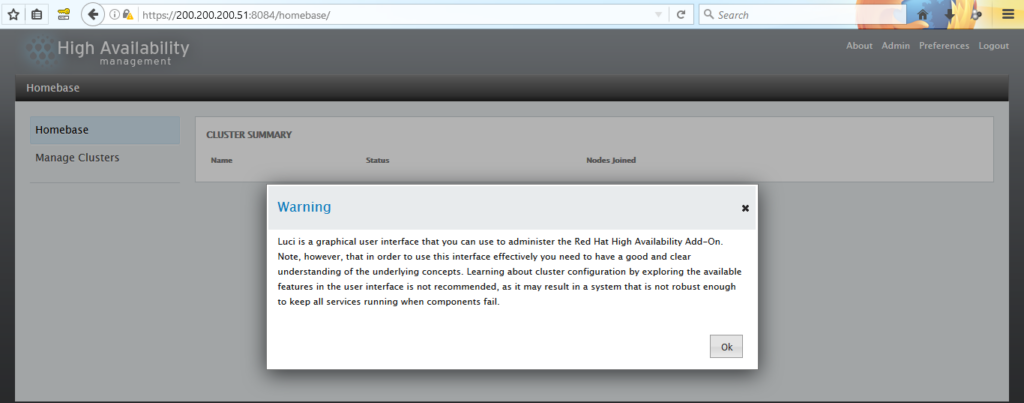
9. A message will prompt
10. Navigate to Manage Clusters and click Create to create a new cluster
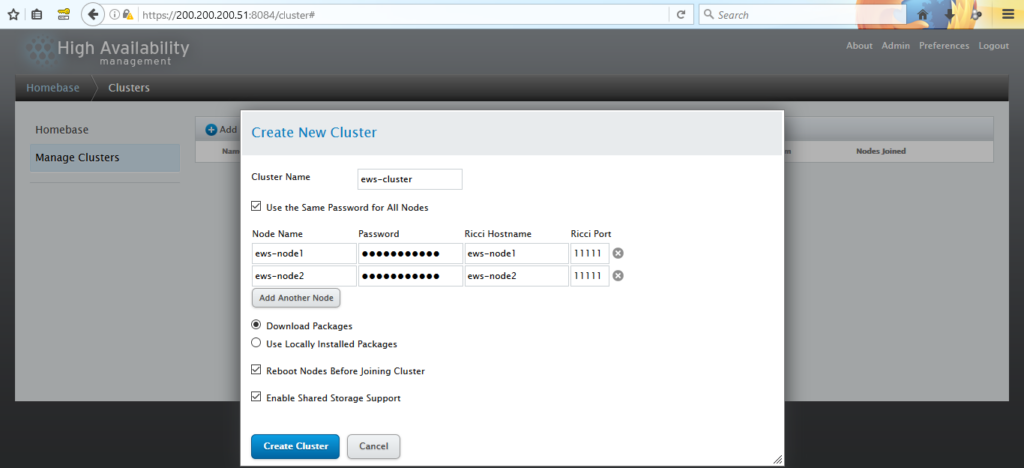
► Give cluster a name
► Check Use the Same Password for All Nodes if ricci's password is same on all node(s)
► Give node(s) a name, fill ricci's password, fill ricci's hostname (Also known as hostname of JBoss EWS node), and fill ricci's port number (Default of ricci's port number is 11111)
► Choose Download Packages
► Check Reboot Nodes Before Joining Cluster
► Check Enable Shared Storage Support
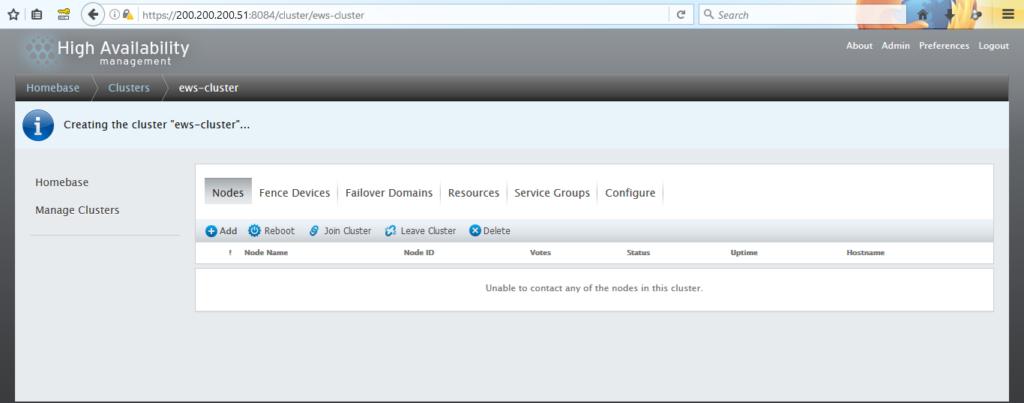
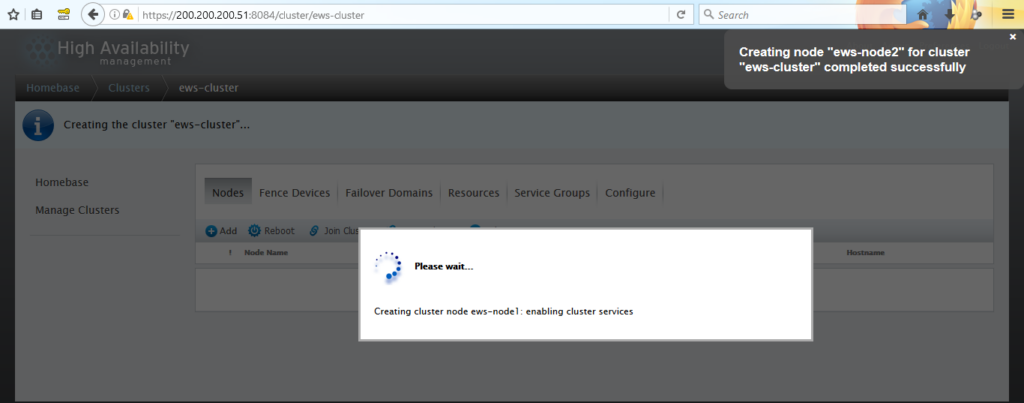
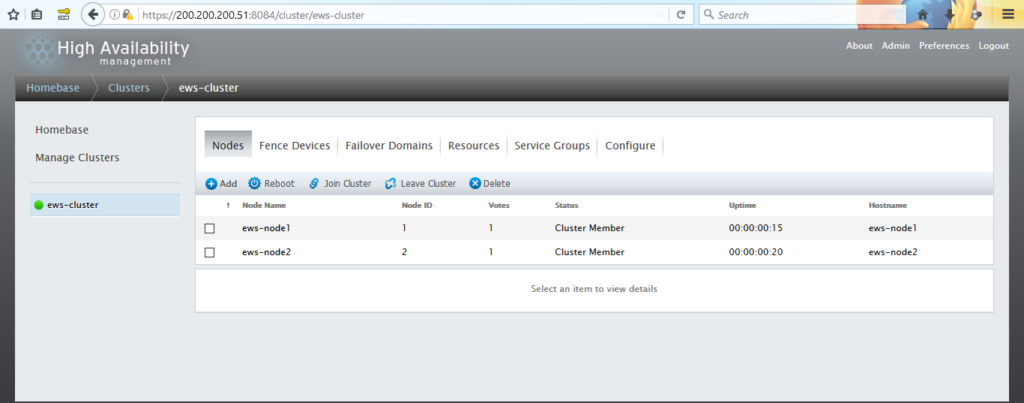
Cluster is created.
11. Navigate to Failover Domains and click Add to create a new failover
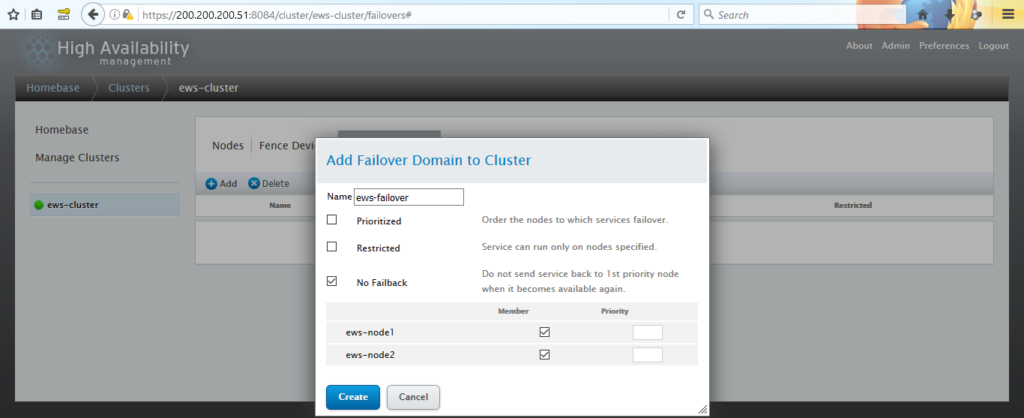
► Give failover a name
► Check No Failback
► Check on Member to make a node(s) is a part of Failover Domain

Note: Feel free to choose options in Failover Domain.
12. Navigate to Resources and click Add to create a new resource
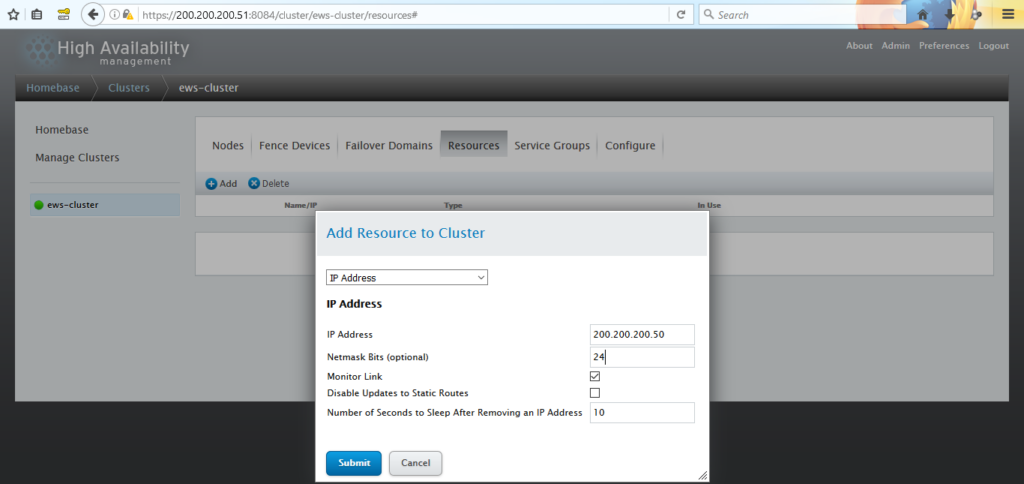
► Choose IP Address to create a virtual IP address for JBoss EWS cluster
► Fill IP Address with virtual IP address
► Fill Netmask Bits in accordance with the actual netmask of network address
► Check Monitor Link
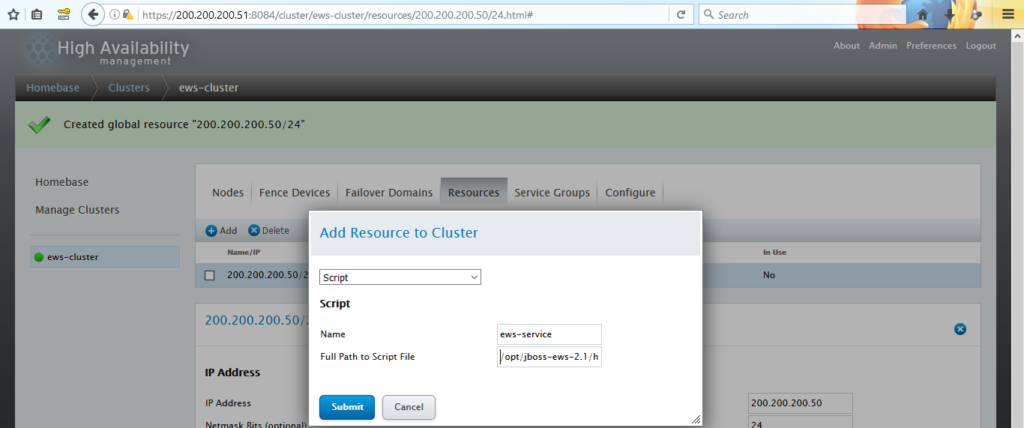
► Choose Script to set path of JBoss EWS httpd service
► Give service a name
► Fill Full Path to Script File with path of JBoss EWS httpd service location
13. Navigate to Service Groups and click Add to create a new service group
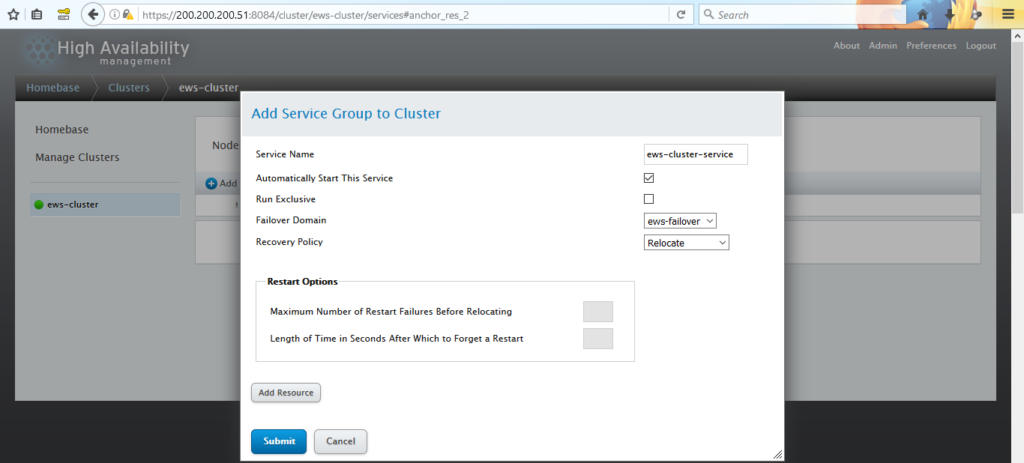
► Give service group a name
► Check Automatically Start This Service
► Choose the previously created Failover Domain
► Click Add Resource
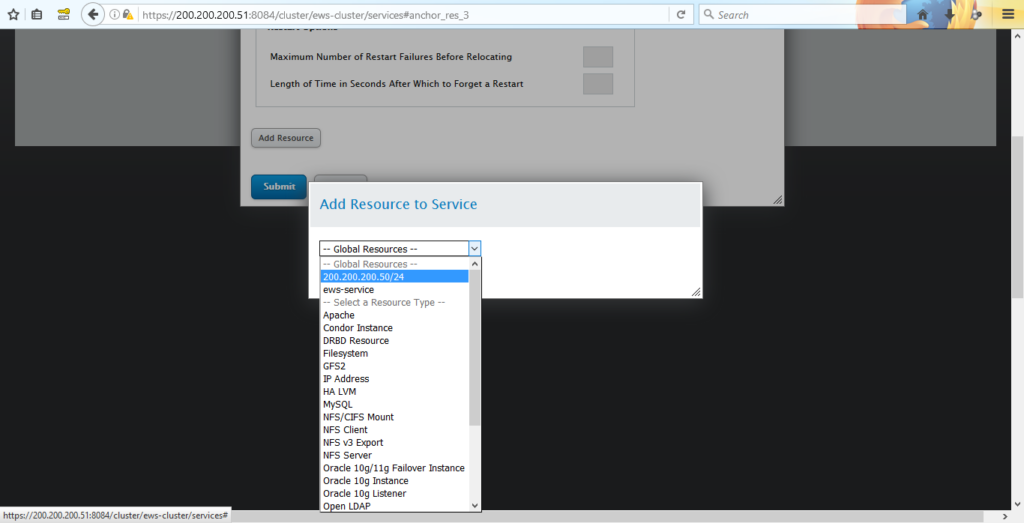
► Choose the previously created IP Address resource
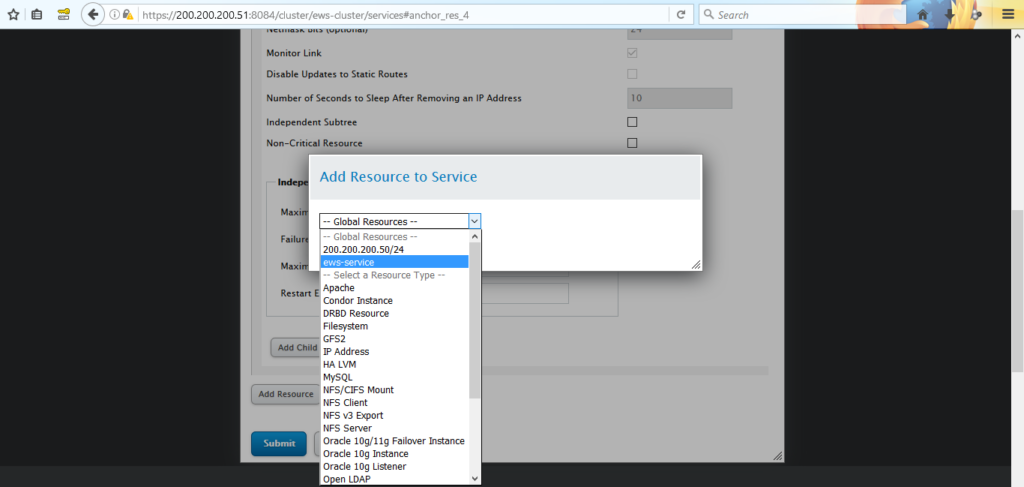
► Choose the previously created Script resource
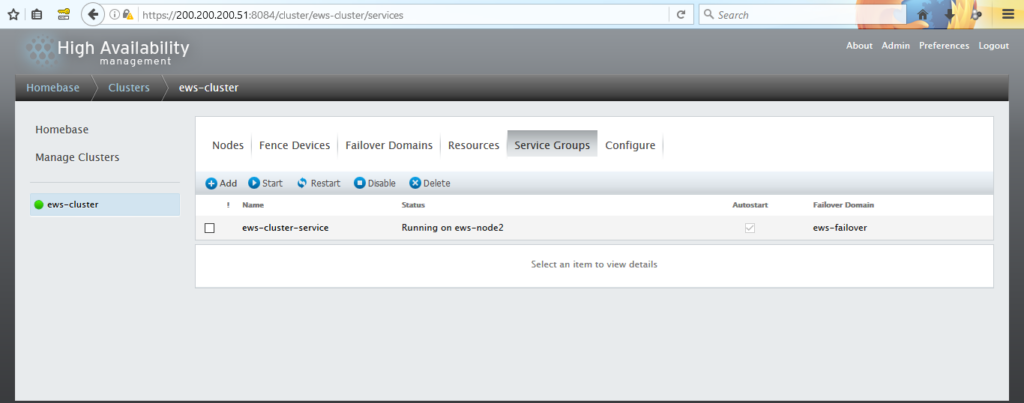
The JBoss EWS httpd service is now managed by luci and the service start on JBoss EWS node 2.
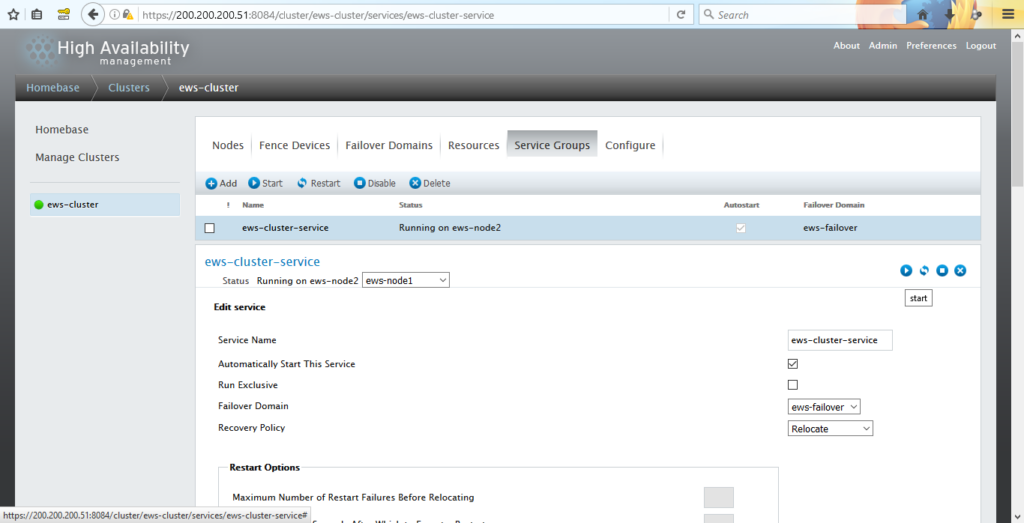
► To change active node with the another one click on Service Groups service
► Choose the another one node on Status Running on active_node
► Click Start button
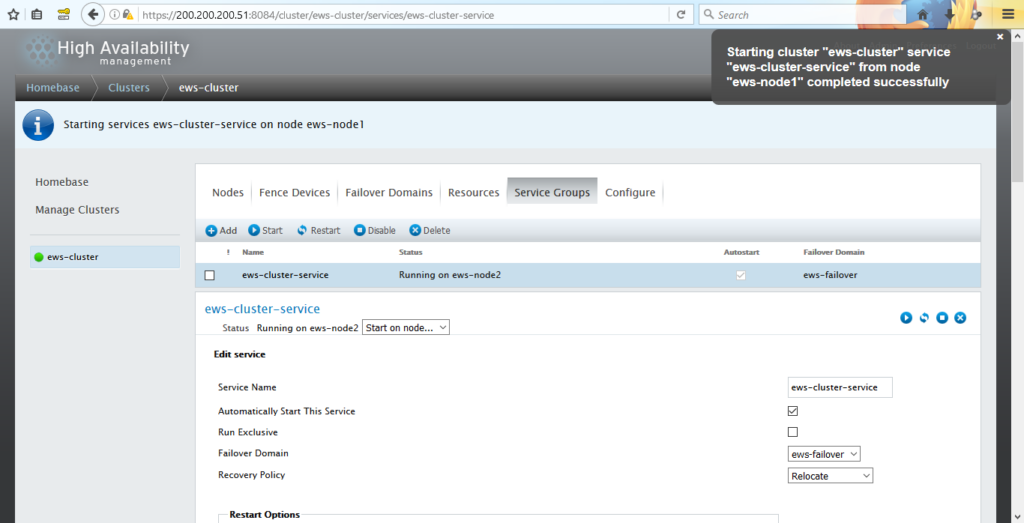
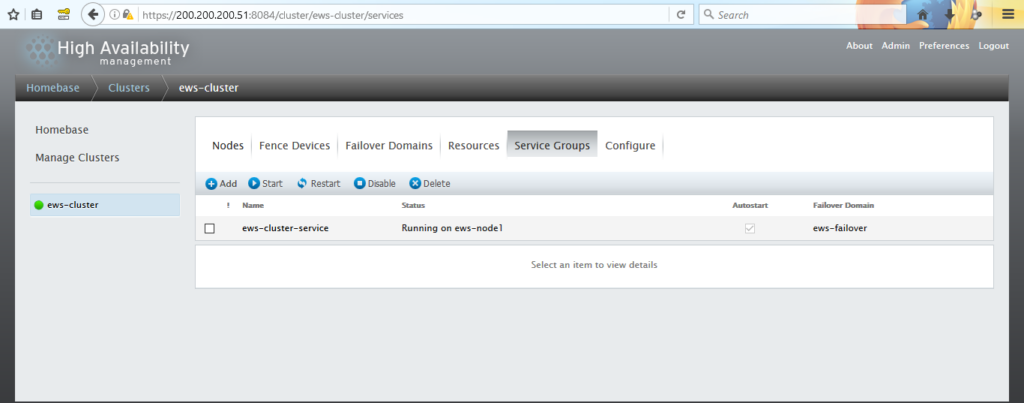
The JBoss EWS httpd service is now running on JBoss EWS node 1.
14. Open test page on browser with virtual IP address https://200.200.200.50
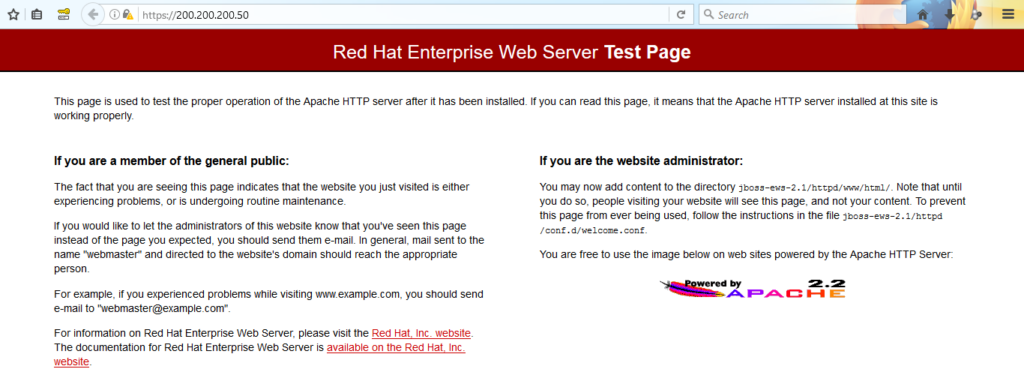
15. Ensure JBoss EWS with clustering is working properly

As you know JBoss EWS httpd service is now running on JBoss EWS node 1. If you directly access to JBoss EWS node 2 the result is unable to connect because JBoss EWS node 2 httpd service is not running.
Precaution:
► Never manually start, restart or stop JBoss EWS httpd service from server. It will cause a problem to cluster. Manage on luci to start, restart or stop JBoss EWS httpd service.
► If you want to shutdown the cluster, do it on the same time on all server in the same cluster to prevent problem with the cluster in the progress of shutting down.
Finally, the installation of JBoss EWS with clustering is done. On the next post I will post about installation of JBoss EAP for Java. See you on the next post!